Picture this: you’re hunched over a cramped airplane tray table, alt-tabbing furiously between a spreadsheet and a presentation while your laptop screen feels increasingly claustrophobic. Or maybe you’re setting up shop in a Lisbon café, trying to code on a single 13-inch display as the afternoon sun creates impossible glare. This is the modern mobile professional’s paradox: we have the freedom to work anywhere, but our tools often anchor us to traditional desks.
Portable monitors have evolved from niche gadgets into essential weapons for digital nomads, business travelers, and remote workers who refuse to compromise on productivity. Unlike their desk-bound counterparts, these slender displays are engineered for the chaos of transit, the unpredictability of power outlets, and the ergonomic challenges of impromptu workspaces. But not all portable monitors are created equal, and choosing the wrong one can turn your mobile command center into a source of constant frustration. This guide dismantles the marketing fluff and dives deep into the engineering realities, workflow optimizations, and hidden pitfalls that separate a travel-worthy display from an expensive paperweight.
Top 10 Portable Monitors for Dual-Screen Travel Setups
Detailed Product Reviews
1. KYY 15.6" Laptop Screen Extender, 1080P FHD IPS Portable Monitor, One Cable USB-C Triple Monitor, Dual Travel Screen for 12"-17’’ Laptops, 360° Rotation & Kickstand,X90D (Driver Need)

Overview: The KYY X90D is a premium triple-screen extender featuring dual 15.6-inch FHD IPS displays that attach to laptops ranging from 12 to 17 inches. It promises universal compatibility across Windows, macOS, Chrome OS, Android, and Linux, though requires driver installation before use—a critical consideration for prospective buyers.
What Makes It Stand Out: The one-cable USB-C connection simplifies setup dramatically, eliminating cable clutter while delivering power and video simultaneously. Each screen rotates a full 360°, enabling unprecedented sharing flexibility and ergonomic adjustment. The integrated kickstand supports 90° adjustment, providing stable support for various viewing angles. The aluminum alloy construction adds durability and professional aesthetics.
Value for Money: At $349.99, the X90D sits in the upper-midrange category. The price is justified by its broad OS support, premium materials, and versatile rotation capabilities. However, the driver requirement and complex initial setup detract from its value proposition compared to plug-and-play alternatives.
Strengths and Weaknesses: Strengths include exceptional compatibility across operating systems, robust build quality, innovative 360° rotation, and clean one-cable connectivity. Weaknesses center on mandatory driver installation that may intimidate non-technical users, potential compatibility hiccups during updates, and a premium price point that competes with entry-level portable monitors.
Bottom Line: Ideal for multi-platform professionals who prioritize flexibility and build quality over plug-and-play convenience. Technical users will appreciate its versatility, but casual users may find the setup process frustrating.
2. VisionOwl Portable Monitor Dual 15.6 Inch 1080P FHD 107% sRGB Foldable Second Screen, USB-C HDMI HDR Stacked Travel Monitor for Laptop MacBook PC PS5 Xbox, VESA Mountable, with Adjustable Kickstand

Overview: The VisionOwl stacked dual-monitor commands a premium price with professional-grade features. Its vertical configuration saves desk space while delivering exceptional color accuracy through dual 15.6-inch FHD IPS matte displays. The package includes every conceivable accessory, positioning it as a turnkey solution for mobile professionals.
What Makes It Stand Out: The 107% sRGB color gamut and 8-bit color depth deliver outstanding color reproduction for design work. Its full-metal body ensures superior durability and thermal management compared to plastic competitors. Windows users benefit from Microsoft-certified DisplayLink drivers that install automatically, while the comprehensive accessory bundle—including a padded travel bag, multiple cables, and VESA mounting hardware—eliminates hidden costs.
Value for Money: At $429.99, this is the most expensive option reviewed. The investment is justified for creative professionals requiring color accuracy and robust build quality. Casual users will find better value elsewhere, but mobile workers seeking a reliable, premium solution will appreciate the no-compromise approach.
Strengths and Weaknesses: Strengths include exceptional color gamut, premium metal construction, complete accessory package, and secure driver implementation. Weaknesses are the high price point, stacked design that may not suit horizontal workflows, and manual driver installation required for macOS users.
Bottom Line: A top-tier choice for designers, photographers, and professionals who demand color fidelity and build quality. The premium is warranted for mission-critical mobile work, but overkill for general productivity.
3. KYY Triple Laptop Screen Extender, 15.6" 1080P FHD IPS Dual Portable Extended Monitor, USB C Travel for 12-17’’ Laptop, 210°Rotation & Kickstand, Plug and Play (Windows Only)
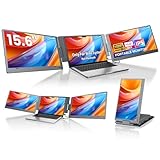
Overview: The KYY X90E targets Windows users exclusively with a streamlined, driver-free triple-screen solution. This 4.85-pound extender attaches to 12-17 inch laptops, offering dual 15.6-inch FHD displays with independent control. The Windows-only approach enables true plug-and-play functionality, eliminating setup friction.
What Makes It Stand Out: True plug-and-play operation sets this apart—no drivers, no hassle. Each screen rotates 210° and can be powered on or off independently, providing flexibility absent in many competitors. The integrated kickstand adjusts to 90°, while rubber mats prevent slipping. The ability to switch between triple-screen and dual-screen modes on demand adds practical versatility for mobile workflows.
Value for Money: Priced at $299.99, the X90E offers solid value for Windows-centric users. The driver-free experience and independent screen control justify the cost, though the 85% NTSC color gamut trails premium alternatives. Mac and Linux users must look elsewhere, limiting its overall market appeal.
Strengths and Weaknesses: Strengths include hassle-free plug-and-play setup, Windows optimization, independent screen management, and reasonable weight. Weaknesses are the restrictive Windows-only compatibility, mediocre color reproduction, and less premium materials compared to higher-priced competitors.
Bottom Line: Perfect for Windows professionals seeking simplicity and reliability. If you live exclusively in the Windows ecosystem, this offers the best balance of features and convenience, but multi-platform users should consider alternatives.
4. Maxfree Laptop Screen Extender, 15.6’’ FHD 1080P Dual Portable Monitor with USB C, HDMI, Plug & Play, VESA Mountable, Lightweight, Dual Monitor for Laptop Windows Mac(M1/M2/M3 chip) Android Ps4 Switch

Overview: The Maxfree extender delivers remarkable value at $161.98, offering triple-screen functionality through a stacked dual-monitor design. Weighing just 3.3 pounds, it supports Windows, macOS (including Apple Silicon), Android, and gaming consoles. Its innovative one-touch large-screen mode combines displays into a 21.5-inch viewing area.
What Makes It Stand Out: The unique large-screen mode transforms two 15.6-inch displays into a single 21.5-inch workspace with one button press—a genuinely innovative feature. The 120% sRGB color gamut exceeds many premium competitors, while the stacked design saves 30% desk space. Despite the low price, it includes VESA mounting and a 135° adjustable kickstand.
Value for Money: This is the value champion. At $161.98, it undercuts most competitors by half while offering unique features and broad compatibility. The compromise comes in build quality and potential driver issues with Mac systems, but the feature set is unmatched at this price.
Strengths and Weaknesses: Strengths include unbeatable pricing, innovative large-screen mode, excellent color gamut, ultra-lightweight design, and wide device compatibility. Weaknesses involve potential driver requirements for some Mac configurations, plastic construction that may sacrifice durability, and stacked design limitations for certain workflows.
Bottom Line: The best budget option for users willing to accept some compromises. Students, remote workers, and casual users will find exceptional value here. Professionals should verify Mac compatibility before purchasing.
5. Kado Dual Portable Monitor Setup - 2-Pack 15.6-inch FHD Portable Monitor for Laptop, 1920x1080 IPS mini-HDMI USB Type-C Laptop Screen Extender Built-in Speakers, Stacked Desk Setup for Office Gaming

Overview: The Kado 2-Pack takes a fundamentally different approach—two independent 15.6-inch monitors rather than an integrated extender. At $119.89 for the pair, it’s the most economical way to add dual screens, though it requires manual arrangement. Built-in speakers and flexible positioning options target budget-conscious users.
What Makes It Stand Out: This is pure value proposition—two monitors for less than the price of one competitor. The ability to position screens anywhere (side-by-side, stacked, or separated) offers customization impossible with hinged extenders. Integrated speakers eliminate external audio needs, while mini-HDMI and USB-C ports ensure broad compatibility.
Value for Money: At $119.89, the price-per-monitor is unmatched. However, value depends on user technical comfort—there’s no integrated mounting system, so users must source stands or arrange manually. For DIY enthusiasts, this is unbeatable; for plug-and-play seekers, it’s a non-starter.
Strengths and Weaknesses: Strengths include absolute lowest cost, maximum positioning flexibility, built-in audio, and simple connectivity. Weaknesses are the lack of integrated design requiring manual setup, absence of rotation mechanisms, basic 1080p specs without advanced features, and potential desk clutter.
Bottom Line: Ideal for tinkerers and extreme budget shoppers comfortable with manual configuration. Office workers wanting a clean, integrated solution should invest more. Gamers and creatives needing flexible, affordable screen real estate will appreciate this unconventional approach.
6. InnoView 15.6" FHD Dual Portable Monitor | All-in-One Foldable & Stackable Design | 315° Screen Adjustment & 180° Stand | USB-C/HDMI Travel Monitor for Laptop, Mac, Windows

Overview: The InnoView delivers a robust dual 15.6-inch portable monitor solution with an innovative foldable, stackable design. This all-in-one travel monitor targets mobile professionals seeking maximum screen real estate, offering USB-C and HDMI connectivity alongside multiple display modes for Windows and Mac systems.
What Makes It Stand Out: The exceptional 315° screen adjustment combined with a 180° gravity-sensing stand provides unparalleled positioning flexibility—switch between vertical stacking, side-by-side, or traditional dual-screen layouts effortlessly. The foldable design collapses into a compact form factor, saving valuable desk space while maintaining genuine dual-monitor productivity. Windows users benefit from true plug-and-play functionality, while the 1080P IPS panels deliver crisp visuals for multitasking.
Value for Money: At $266.99, this represents solid mid-range value for dual 15.6-inch monitors. The generous screen size justifies the premium over smaller 14-inch alternatives, while the versatile stand system adds meaningful ergonomic value. Though requiring a separate power adapter, the build quality and adjustment range make it competitively priced against less flexible competitors.
Strengths and Weaknesses: Pros: Large dual 15.6" displays; highly adjustable stand (315° rotation); foldable/stackable design; Windows plug-and-play; excellent for programming and data analysis. Cons: Requires separate power adapter; Mac users need driver installation for extension mode; HDMI limited to splicing/copy modes; heavier than single-screen extenders.
Bottom Line: Ideal for Windows professionals prioritizing screen size and ergonomic versatility over ultra-portability. The InnoView excels in home offices and shared workspaces, though Mac users should verify compatibility requirements. Recommended for developers, analysts, and multitaskers who need flexible, large-format mobile displays.
7. MAGICRAVEN Dual Laptop Screen Extender, 14" 1080P IPS Portable Triple Monitor for 14-16.5" Laptops with USB-C Port, Plug and Play, Attachment Screen for Windows/Mac/Android/Switch/PS5/Xbox

Overview: The MAGICRAVEN provides a lightweight triple-monitor expansion with dual 14-inch IPS screens designed specifically for 14-16.5-inch laptops. Weighing only 3.4lbs, this portable workstation delivers 1080P resolution with 100% sRGB color accuracy, targeting professionals who demand both performance and portability.
What Makes It Stand Out: True single-cable plug-and-play for Windows eliminates driver complications entirely. The 250° rotating screens enable customized viewing angles, while the triple-monitor configuration (laptop plus two extenders) claims a 300% productivity boost. The exceptional 3-year warranty and lifetime support demonstrate strong manufacturer confidence and provide long-term peace of mind.
Value for Money: At $169.99, this offers outstanding budget-friendly value. Dual 14" IPS displays with full sRGB coverage typically command much higher prices. For Windows users with compatible laptops, it’s among the most cost-effective triple-screen solutions available, delivering premium features at a competitive entry-level price point.
Strengths and Weaknesses: Pros: Very affordable; lightweight (3.4lbs); excellent color accuracy (100% sRGB); bright 300 nits display; simple plug-and-play; strong 3-year warranty. Cons: Limited to 14-16.5" laptops; Mac M1/M2/M3 chips only extend one display; not suitable for smaller/larger laptops; requires two cables for Mac functionality.
Bottom Line: A top-tier choice for Windows laptop users seeking affordable triple-screen productivity. The MAGICRAVEN brilliantly balances price, performance, and portability. Mac users with M-series chips should seek alternatives, but for compatible Windows machines, this delivers remarkable value and functionality that’s hard to beat.
8. Wixzet Laptop Screen Extender, 14" FHD 1080P Portable Monitor for Laptop, Plug&Play Triple Screen Extender, Auto Adjust Width Dual Monitor for 13" - 17" Laptops, Compatible with MacOS/Wins/Chrome/Dex
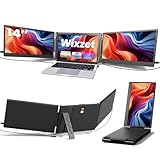
Overview: The Wixzet T2Pro introduces intelligent auto-adjustment to the triple-monitor market, fitting 13-17-inch laptops with its one-button automatic stretching mechanism. This 14-inch FHD extender features reinforced mounting hardware and comprehensive eye-care technologies, appealing to mobile professionals and frequent business travelers.
What Makes It Stand Out: The smart auto-stretch back panel automatically adapts to different laptop widths, eliminating manual reconfiguration when switching devices. Built-in anti-glare and low blue light technology reduces eye fatigue during marathon work sessions. Independent brightness and volume controls for each screen allow personalized comfort settings, while the reinforced top hook and widened back stand ensure rock-solid stability across diverse laptop designs.
Value for Money: Priced at $180.48, the Wixzet occupies a compelling mid-range position. The universal width adjustment adds significant practical value for multi-laptop households or frequent upgraders. While slightly heavier at 4.1lbs, the enhanced compatibility and eye-care features justify the modest premium over fixed-width competitors.
Strengths and Weaknesses: Pros: Auto-adjustable width (13-17" laptops); anti-glare and low blue light protection; independent screen controls; stable reinforced design; broad OS compatibility. Cons: Heavier than competitors (4.1lbs); incompatible with Mac M1/M2/M3 chips; some laptops require HDMI+USB-A setup; not universally plug-and-play.
Bottom Line: Excellent for professionals using multiple laptop sizes or prioritizing eye comfort. The Wixzet’s auto-adjustment feature proves genuinely useful, though Mac M-chip users should avoid it. Recommended for Windows/Chromebook users who value versatility and ergonomic features over absolute minimal weight.
9. Laptop Screen Extender, 15.6’’ 1080P FHD Laptop Monitor Extender with 235°Rotation Detachable Dual Monitor, Plug & Play, Triple Screen for 13"-17.3" Laptops Compatible with Mac/Wins/Android/Dex

Overview: This innovative 15.6-inch triple-monitor extender features a unique detachable design that transforms into two independent portable displays. With 235° horizontal and 90° vertical rotation, it supports landscape, portrait, and stacked configurations for laptops from 13 to 17.3 inches, offering unprecedented versatility for collaborative professionals.
What Makes It Stand Out: The detachable single-sided screens (2.1lbs each) provide unmatched flexibility—deploy both for triple-screen immersion or use one independently during travel. The 235° rotation system enables custom viewing angles perfect for client presentations or team collaboration. Built-in speakers and low-blue-light technology enhance both productivity applications and entertainment experiences.
Value for Money: At $259.99, this commands a premium but delivers unique three-in-one functionality: triple-screen extender, dual-screen setup, and two independent portable monitors. For frequent travelers and collaborative workers, this versatility offsets the higher cost compared to fixed dual-screen alternatives, making it a justifiable investment.
Strengths and Weaknesses: Pros: Detachable screens for ultimate flexibility; large 15.6" displays; wide laptop compatibility (13-17.3"); multiple rotation options; built-in speakers; anti-glare eye protection. Cons: Premium pricing; Mac M1/M2/M3 base chips unsupported; heavier when using both screens; requires extra USB-A cable for HDMI power.
Bottom Line: Best suited for collaborative professionals and frequent travelers who need maximum adaptability. The detachable design is genuinely innovative, though the price may deter casual users. Mac users must have Pro/Max chips. If you value adaptability and screen size above all, this justifies its premium cost.
10. Pornitor Laptop Screen Extender, 14’’ FHD 1080P Triple Portable Monitor for Laptop with Ultra-Slim IPS Display, USB-C Plug and Play Multi Screen Attachment for 14"-16.5" Laptops

Overview: The Pornitor triple-monitor extender converts compatible laptops into efficient three-screen workstations via ultra-slim 14-inch IPS displays. Designed for 14-16.5-inch laptops, this lightweight solution emphasizes rapid Windows setup, delivering 1080P resolution with anti-glare matte finishes for professionals engaged in extended computing sessions.
What Makes It Stand Out: Single-cable plug-and-play for Windows laptops provides instant dual-screen expansion without driver overhead. The 250° adjustable stand offers extensive ergonomic positioning, while triple display modes (extended, mirror, portrait) adapt to diverse workflows. The anti-glare matte finish significantly reduces eye strain, making it practical for developers, traders, and data analysts working long hours.
Value for Money: At $189.98, the Pornitor hits the budget-conscious professional sweet spot. While its 72% NTSC color gamut trails behind 100% sRGB competitors, practical features like one-cable Windows connectivity and a robust stand system deliver strong utility. It undercuts premium models while maintaining essential productivity functionality.
Strengths and Weaknesses: Pros: Affordable pricing; ultra-slim profile; one-cable Windows setup; bright 300 nits display; versatile 250° stand; anti-glare screen; straightforward operation. Cons: Lower color accuracy (72% NTSC); limited to 14-16.5" laptops; Mac M-chips only mirror one screen; size restrictions exclude smaller/larger laptops; warranty details not specified.
Bottom Line: A solid budget option for Windows users wanting triple-screen productivity without complexity. The Pornitor sacrifices some color precision for affordability and ease of use. Mac M-chip users should consider alternatives. Recommended for office workers and students using mid-sized Windows laptops who prioritize setup simplicity and eye comfort over professional color accuracy.
Why Dual Screens Are a Game-Changer for Mobile Professionals
The Psychology of Multitasking on the Road
Our brains aren’t wired for the digital juggling act that single-screen computing demands. Cognitive load theory reveals that every window switch, every alt-tab, every moment spent hunting for the right application fragments our focus and depletes mental resources. When you’re working in unfamiliar environments—already taxed by navigation, time zones, and sensory input—this cognitive overhead becomes exponentially more draining. A second screen creates spatial memory anchors, allowing your brain to treat digital workspace the way it treats physical space. Your email lives over there, your main document here, reducing the working memory burden and preserving precious mental bandwidth for actual problem-solving.
Quantifying the Productivity Boost
Research consistently shows that multi-monitor setups yield 20-30% productivity gains for knowledge workers, but these numbers tell only part of the story for travelers. The real magic happens in error reduction: fewer mistaken copy-pastes, less context-switching fatigue, and dramatically reduced scrolling through reference materials. For developers, having documentation visible while coding cuts debugging time significantly. For analysts, side-by-side spreadsheet comparisons eliminate costly data entry mistakes. On the road, where time is often compressed and mistakes are more expensive to fix, these efficiencies compound into hours saved per week.
Understanding Portable Monitor Specifications
Screen Size: Balancing Real Estate and Portability
The sweet spot for travel monitors sits between 14 and 16 inches—large enough to provide meaningful additional workspace, small enough to slide into a laptop bag’s padded compartment alongside your primary device. Anything under 13 inches often feels like a glorified tablet, while 17-inch models frequently defeat the purpose of portability, requiring separate cases and drawing unwanted attention at airport security. Consider your primary laptop’s dimensions: pairing a 13-inch laptop with a 15-inch portable monitor creates a balanced asymmetry, while matching sizes can simplify packing.
Resolution Fundamentals: From Full HD to 4K
Resolution decisions involve tradeoffs between clarity, compatibility, and power consumption. Full HD (1920×1080) remains the pragmatic choice for most travelers—universally compatible, gentle on laptop batteries, and perfectly crisp at 14-15 inches. Quad HD (2560×1440) offers a noticeable sharpness improvement without the punishing power demands of 4K. Speaking of 4K, those 3840×2160 panels shine for creative professionals who need pixel-perfect precision, but they’ll drain your laptop battery 40-50% faster and may cause scaling issues with older applications. The kicker? Many airlines’ tray tables can’t accommodate the larger text and UI elements that 4K necessitates at 100% scaling, forcing you into uncomfortable compromises.
Panel Technologies: IPS, OLED, and TN Compared
IPS panels dominate the portable monitor market for good reason: excellent viewing angles (crucial when you can’t control seating position), decent color accuracy, and reasonable response times. OLED displays deliver jaw-dropping contrast and true blacks that make them irresistible for video editors and photographers, but they’re vulnerable to burn-in from static UI elements and consume more power displaying bright content. TN panels appear only in budget models and should be avoided—they’re the aviation coach seats of display technology, functional but uncomfortable for extended use, with color shifting that becomes apparent the moment you tilt the screen.
Connectivity: The Make-or-Break Factor
USB-C Alt Mode Explained
USB-C’s greatest trick is Alt Mode, which repurposes the connector’s high-speed lanes to carry native DisplayPort signals. But here’s where manufacturers get sneaky: not all USB-C ports support Alt Mode, and even those that do might offer only two lanes (4K at 30Hz) instead of four lanes (4K at 60Hz). The technical spec you’re looking for is “USB-C with DP Alt Mode” and specifically “HBR3” (High Bit Rate 3) support for higher resolutions. Without this clarity, you might purchase a monitor that works perfectly with your Dell XPS but refuses to connect to your colleague’s ThinkPad.
HDMI and Mini HDMI: Legacy Support
HDMI connectivity isn’t obsolete—it’s your insurance policy. Many hotel room TVs, conference room projectors, and older laptops rely on HDMI. Mini HDMI saves precious millimeters on slim monitor profiles but requires carrying a fragile adapter that will inevitably disappear into the void of your backpack’s bottom compartment. Full-size HDMI ports offer robust connection security but add bulk. The savvy traveler prioritizes USB-C primary connectivity with HDMI as a backup, ensuring you’re never stranded without a display option.
Thunderbolt 3/4 for Maximum Bandwidth
Thunderbolt ports (identical to USB-C physically but marked with a lightning bolt) unlock the true potential of high-end portable monitors. With 40Gbps bandwidth, they handle dual 4K displays, deliver 100W power delivery, and support daisy-chaining multiple peripherals through a single cable. The catch? Your laptop needs Thunderbolt support, and the monitor needs a dedicated Thunderbolt controller—both of which add cost. For most users, this is overkill, but if you’re editing 6K video or running complex simulations, it’s non-negotiable.
Power Delivery: Single-Cable Simplicity
The holy grail of mobile setups: one cable that carries video, data, and up to 100W of power to charge your laptop. Power Delivery (PD) 3.0 is the current standard, but implementation varies wildly. Some monitors pass through only 15W, slowly draining your laptop battery during use. Others provide a full 85-100W but require their own bulky power brick. The critical question: does the monitor’s power delivery exceed your laptop’s power consumption under load? A 45W-pass-through monitor connected to a laptop that needs 65W during rendering sessions creates a ticking clock scenario where your battery dies despite being plugged in.
Power Management Strategies
Bus-Powered Monitors: Convenience vs. Laptop Drain
Bus-powered monitors draw electricity directly from your laptop’s USB-C port, eliminating the need for separate power adapters. This simplicity comes at a cost: they can reduce your laptop’s battery life by 30-60% depending on brightness and resolution. The power draw isn’t linear—jumping from 1080p to 4K can double consumption. For short flights or café sessions, this tradeoff is manageable. For transcontinental journeys or full workdays without guaranteed outlets, it’s a liability. Always check the monitor’s rated power consumption (watts) and factor it into your laptop’s total battery budget.
External Power Adapters: When You Need Them
Monitors with dedicated power bricks offer consistent performance and preserve laptop battery but introduce another charger to your kit—often with proprietary connectors that can’t be replaced easily when lost. The sweet spot? Monitors that support both bus power and external adapters, automatically switching between modes. This flexibility lets you travel light for short trips but scale up for intensive work sessions. Pro tip: measure the adapter’s weight and dimensions; some “portable” monitors come with bricks larger than the display itself.
Calculating Total Power Budget for Your Setup
Here’s the math airlines don’t want you to think about: laptop (45-95W) + monitor (5-15W bus-powered) + phone charging (10-20W) = 60-130W total draw from a single airplane outlet limited to 75W. Many portable monitors become power-hungry when brightness exceeds 200 nits, and that “USB hub” feature? It adds another 5-10W if you’re charging peripherals. The solution: a portable monitor with its own power input that can simultaneously charge your laptop, effectively creating a power distribution system rather than a drain.
Portability Factors Beyond Weight
Dimensions and Carry-On Compatibility
Weight matters, but envelope dimensions determine whether your monitor slides into a laptop sleeve or requires its own protective case. The critical measurement is thickness when folded: monitors under 0.4 inches (10mm) can piggyback on your laptop using magnetic mounts, while those approaching 0.6 inches need dedicated compartments. Width and height should complement, not match, your laptop—an extra inch of vertical space provides room for a built-in stand without making the combo unwieldy. Always measure your bag’s laptop compartment; many “fits 15-inch laptop” sleeves won’t accommodate a 15-inch monitor plus your actual computer.
Build Materials: Aluminum vs. Plastic
Aluminum unibody construction adds 200-300 grams but provides torsional rigidity that prevents flex-induced LCD damage and dissipates heat more effectively—crucial for bus-powered monitors that run warm. Plastic bodies save weight and cost but can develop stress cracks at mounting points after months of vibration in overhead bins. Carbon fiber remains rare and expensive but offers the best strength-to-weight ratio for extreme travelers. The finish matters too: matte textures hide scratches better than anodized surfaces that reveal every airport security scuff.
Protective Solutions: Cases and Screen Covers
Most included protective folios are afterthoughts—thin flaps that offer minimal impact protection. Seek monitors with recessed screens (bezels that extend beyond the display surface) and consider third-party hard-shell cases designed for tablets of similar dimensions. Some monitors feature Gorilla Glass or chemically strengthened covers that resist scratches from keys in your bag. Remember: replacing a cracked portable monitor screen often costs more than the device itself, making protection a non-negotiable investment.
Ergonomics and Viewing Comfort
Integrated Kickstands: Pros and Cons
Magnetic origami-style stands look elegant in product photos but offer limited angle adjustment—typically just two positions. This rigidity forces you to adapt your posture to the monitor rather than the reverse, causing neck strain during extended use. Hinged metal stands provide infinite adjustment but add mechanical complexity that can loosen over time. The gold standard? Monitors with integrated stands that support both portrait and landscape modes, allowing you to pivot between coding (vertical) and spreadsheet work (horizontal) without carrying extra accessories.
Magnetic Mounting Systems
Magnetic mounting represents the frontier of portable ergonomics, using rare-earth magnets to attach the monitor directly to your laptop’s lid or side. This creates a seamless dual-screen experience that moves as one unit—perfect for tiny café tables. However, magnet strength is critical: too weak, and your monitor slides off when you adjust the laptop angle; too strong, and you risk damaging your laptop’s display when removing it. Additionally, magnets can interfere with laptop compasses and certain sensors, though modern devices are generally shielded. Always verify the mounting system’s weight rating and test the removal force before committing.
VESA Mount Compatibility for Ultimate Flexibility
The 75×75mm VESA mount pattern on a portable monitor unlocks a universe of third-party arms, clamps, and stands. In hotel rooms, you can attach it to a desk clamp to reclaim surface area. In co-working spaces, a simple VESA stand elevates the monitor to eye level. This 50-gram metal plate adds negligible weight but transforms your monitor from a travel-only device into a hybrid solution that works equally well at home. The downside: VESA mounts require recessing the connection point, which can increase overall thickness by 3-5mm.
Display Quality for Professional Work
Color Gamut: sRGB, DCI-P3, and AdobeRGB
For photographers and video editors, color gamut coverage determines whether your portable monitor is a trusted tool or a deceptive liability. sRGB coverage below 99% is unacceptable for any professional use. DCI-P3 coverage above 90% becomes crucial for video work, especially HDR content. AdobeRGB matters primarily for print photographers; digital-only creators can often ignore it. The trap: manufacturers advertise “125% sRGB” which actually means the monitor can oversaturate colors beyond the standard—not a feature, but a bug that requires calibration to tame. Look for monitors that include factory calibration reports with Delta E < 2 color accuracy.
Brightness Levels for Outdoor Use
The 250-nit brightness typical of budget monitors suffices for dim offices but washes out completely in airport terminals, sunny cafés, or airplane windows seats. For true versatility, seek 350-400 nits minimum. Some monitors achieve 500+ nits for HDR content, but sustained full brightness generates substantial heat and power draw. The real-world test: can you comfortably read black text on a white background with afternoon sun hitting your shoulder? If not, that monitor belongs on a desk, not in your carry-on.
HDR Support in Portable Displays
High Dynamic Range in portable monitors often disappoints because peak brightness, not just format support, determines HDR quality. Many “HDR10-compatible” monitors lack the 600+ nits needed for meaningful highlight detail. For travelers, HDR’s power consumption rarely justifies its benefits—those stunning contrast ratios vanish in bright environments where you’ll actually use the monitor. Unless you’re specifically editing HDR video, treat this feature as a bonus rather than a requirement.
Performance Features for Specialized Use Cases
Refresh Rates: 60Hz vs. 120Hz+
Standard 60Hz displays suffice for office work but create perceptible lag when scrolling through long documents or moving windows. A 75Hz or 90Hz panel provides a subtle smoothness improvement without impacting battery life significantly. True 120Hz+ displays benefit gamers and developers testing animations, but they require more bandwidth—often necessitating Thunderbolt connections for resolutions above 1080p. The hidden cost: higher refresh rates can cause compatibility issues with older laptops that don’t recognize the EDID profiles, forcing you to manually set refresh rates in display settings.
Response Times for Gaming and Video
Advertised response times (often 1ms-5ms) measure gray-to-gray transitions under ideal conditions and rarely reflect real-world performance. For video editing, look for monitors with low input lag (the delay between signal reception and pixel response) rather than fast response times. This spec is rarely published, requiring you to dig through enthusiast forums for real measurements. For casual gaming, anything under 10ms is acceptable; competitive gaming demands under 5ms, which typically requires TN panels that sacrifice color quality—a tradeoff most travelers shouldn’t make.
Adaptive Sync Technologies (FreeSync/G-Sync)
Adaptive sync eliminates screen tearing by matching the monitor’s refresh rate to your laptop’s GPU output. In portable monitors, this feature matters most for inconsistent frame rates during gaming or 3D rendering. However, most adaptive sync implementations require DisplayPort connectivity—meaning USB-C Alt Mode or Thunderbolt, not HDMI. The technology adds minimal cost but can introduce compatibility quirks with non-AMD GPUs. For non-gaming use, it’s largely irrelevant.
Touchscreen and Stylus Support: Tablet Alternatives
Touchscreen Capacitive Technology
Capacitive touchscreens add 100-150 grams and a glass layer that increases reflectivity, but they transform your monitor into a digital whiteboard or signature pad. The key differentiator is multi-touch point support: basic panels offer 5-10 points, while premium displays support 20+ points for complex gestures. Touch accuracy degrades at screen edges, which matters if you plan to use on-screen keyboards or precision tools. For travelers, the bigger question is software: Windows handles touch beautifully, while macOS treats secondary touchscreens as second-class citizens, offering limited gesture support.
Active Stylus Support and Pressure Levels
Active stylus support (using electromagnetic resonance technology) turns a portable monitor into a Wacom alternative for digital artists. Pressure sensitivity ranges from 2,048 to 8,192 levels, though human perception plateaus around 4,096 levels. Tilt recognition and palm rejection separate professional-grade implementations from gimmicks. The deal-breaker: most portable monitors with stylus support require the pen to be powered separately via battery or charging, adding another failure point. Fewer than a dozen models integrate the digitizer technology seamlessly enough for professional illustration work.
Use Cases for Interactive Displays
Touchscreens excel in collaborative client presentations, allowing you to annotate contracts and sketches directly. They’re invaluable for form-heavy workflows like medical data entry or insurance claims processing. However, the glossy surfaces required for touch compatibility create reflections that negate brightness advantages, making them poor choices for outdoor use. The fingerprint smudges alone can drive detail-oriented professionals mad without constant cleaning.
Audio and Additional Features
Integrated Speakers: Expectations vs. Reality
Built-in speakers in portable monitors are universally terrible—tinny, underpowered, and positioned to fire sideways or backward, away from you. They exist solely for system sounds and video calls in a pinch. Expecting them to replace headphones or a Bluetooth speaker invites disappointment. The real audio feature to seek is a 3.5mm headphone jack with low-latency passthrough, allowing you to connect wired headphones without the audio lag that Bluetooth introduces during video editing.
USB Hub Functionality and Pass-Through Ports
Many monitors include USB-A ports for connecting keyboards, mice, or flash drives, effectively becoming a docking station. This is brilliant in theory but often implemented poorly. The hub might share bandwidth with the display signal, causing peripherals to lag when the screen refreshes heavily. High-quality monitors use separate USB controllers or Thunderbolt’s additional lanes to avoid this contention. Check whether the hub works when the monitor is in standby—some power down completely, forcing you to reconnect devices constantly.
Price Tiers and Value Propositions
Budget-Friendly Options Under $200
In this range, expect 1080p IPS panels with basic USB-C connectivity, plastic construction, and minimal brightness (200-250 nits). They’ll have slower response times and limited color accuracy (72% NTSC, which translates to roughly 95% sRGB). The stands will be flimsy, and power delivery will top out at 15W—enough to slowly charge a phone but not a laptop. These monitors serve as excellent secondary displays for email and chat, but attempting color-critical work or outdoor use reveals their limitations quickly. The hidden cost: replacement frequency, as budget models rarely survive more than 12-18 months of travel abuse.
Mid-Range Excellence: $200-$400
This sweet spot delivers 1080p or 1440p IPS panels with 300-400 nits brightness, aluminum construction, and robust stands. You’ll find proper USB-C PD (45-65W passthrough), VESA mounting, and factory color calibration with Delta E < 3. Many include touchscreens or higher refresh rates. These monitors represent the best value for most professionals, offering 80% of premium features at 40% of the cost. The durability improvements alone justify the price jump—metal frames absorb impacts that would crack plastic housings.
Professional Grade: $400 and Above
Premium monitors target specific professional needs: 4K OLED panels for video editors, 120Hz+ displays for developers, or ruggedized models for field engineers. They include Thunderbolt connectivity, 600+ nit brightness, and color accuracy that rivals desktop monitors. The law of diminishing returns applies heavily here—you’re paying for specialized features rather than general improvements. However, for those whose income depends on color-critical work or who travel to harsh environments, this investment pays for itself in reliability and accuracy.
Optimizing Your Mobile Command Center
Operating System Configuration Tips
Windows 11’s display management has improved dramatically, but auto-scaling between monitors with different resolutions remains problematic. Set your portable monitor as the “main display” to ensure dialog boxes and new windows open where you expect them. macOS users should enable “Displays have separate Spaces” in Mission Control settings, then use the arrangement tab to position the portable monitor logically—placing it to the right when it’s physically on your left creates a disorienting cursor jump. Linux users should verify Wayland compatibility; many portable monitors’ EDID data confuses X11, requiring manual xrandr configuration that doesn’t persist across reboots.
Cable Management for Mobile Setups
A single tangled cable can transform a sleek mobile setup into a rat’s nest. Use short (0.5m) USB-C cables with right-angle connectors to minimize slack and strain. Velcro cable ties are lighter and more adjustable than zip ties. Consider a small tech pouch that unfolds with dedicated elastic loops for your monitor cable, laptop charger, and accessories—this prevents the “bottom of backpack” cable spaghetti that damages connectors. The goal: be able to set up or pack down in under 60 seconds without detangling anything.
Software Tools for Multi-Display Management
DisplayFusion (Windows) and BetterTouchTool (macOS) let you create window-snapping zones that remember your portable monitor’s configuration. Set profiles for “airplane mode” (single screen, low brightness) and “hotel desk mode” (dual screen, full resolution). Some monitors include proprietary software that overrides OS display settings—uninstall these immediately; they cause more conflicts than they solve. Instead, use native OS tools or universal utilities that respect standard display protocols.
Troubleshooting Common Issues
Display Detection Problems
Your laptop fails to recognize the portable monitor. First, verify USB-C Alt Mode support using a system information tool. Try reversing the USB-C cable—some cables are directional despite appearing symmetrical. Update your laptop’s Thunderbolt/USB drivers and the monitor’s firmware (often requires Windows, even for macOS users). If detection is intermittent, the cable is usually the culprit; USB-C cables have wildly varying quality, and many can’t sustain the data rates required for high-resolution video. Invest in a certified 40Gbps cable, even if your monitor only needs 10Gbps—future-proofing aside, quality cables have better shielding that prevents signal dropouts.
Power and Flickering Issues
Flickering almost always indicates insufficient power delivery. If bus-powered, reduce the monitor’s brightness to 50% and disable any USB hub features. If externally powered, ensure the adapter meets the monitor’s voltage and amperage requirements exactly—using a laptop’s 65W charger with a monitor that expects 20V/2A can cause voltage sag. Check for ground loops: connecting both monitor and laptop to the same power source via different adapters can create interference. The nuclear option: disable USB selective suspend in your OS power settings, which can prematurely cut power to the display controller.
Color Profile Mismatches
Colors look wildly different between your laptop and portable monitor. This isn’t a defect—it’s a calibration issue. Download the monitor’s ICC color profile from the manufacturer’s website (not the included CD, which contains outdated drivers). In Windows, assign it through Color Management; in macOS, use the Displays preference pane. The deeper issue: most portable monitors default to “cool” color temperatures (7500K-9000K) that appear brighter in showrooms but are inaccurate. Calibrate to D65 (6500K) for proper color work. If you lack a colorimeter, at least match the white point visually using test patterns.
Future-Proofing Your Investment
Emerging Standards to Watch
USB4 and DisplayPort 2.0 are rolling out, promising 80Gbps bandwidth that enables 8K portable monitors. However, the ecosystem is fragmented—Intel’s implementation differs from AMD’s, and Apple’s silicon has its own quirks. OLED panels with variable refresh rates and burn-in mitigation are becoming viable for professional use. Wireless display technologies (Wi-Fi 6E, WiGig) are finally achieving latency low enough for productivity work, though they still can’t match wired reliability. The pragmatic approach: invest in a monitor that exceeds your current needs by one generation, but don’t pay a premium for standards that won’t mature for 2-3 years.
Modular and Upgradeable Designs
Some innovative manufacturers are separating the display panel from the controller board, allowing you to upgrade connectivity (e.g., from USB-C to Thunderbolt) without replacing the entire monitor. Others offer replaceable stands and protective covers that extend lifespan beyond the typical 2-3 year travel monitor lifecycle. While this modularity adds initial cost, it reduces electronic waste and total cost of ownership for heavy users. Look for monitors with externally accessible firmware update mechanisms—the ability to patch display controller bugs indicates a manufacturer committed to long-term support.
Frequently Asked Questions
Will a portable monitor drain my laptop battery if it’s plugged into the same power source?
Yes, if the monitor draws bus power, it will reduce your laptop’s effective battery life by 30-60% depending on brightness and resolution. Even when both devices share a wall outlet, the laptop’s power adapter must supply both devices, potentially limiting charging speed. Monitors with independent power adapters avoid this issue entirely.
Can I use a portable monitor with my iPad or Android tablet?
Most modern iPads with USB-C support external displays via Stage Manager or dedicated apps, but functionality is limited compared to desktop OSes. Android tablets vary wildly—Samsung DeX mode works beautifully, while stock Android often mirrors rather than extends the display. Check your device’s USB-C implementation; many tablets lack the power output to drive a monitor without an external adapter.
How do I clean the screen without damaging the protective coating?
Use a microfiber cloth slightly dampened with distilled water—never tap water, which leaves mineral deposits. For stubborn smudges, add a drop of pH-neutral screen cleaner. Avoid alcohol-based solutions on touchscreens; they degrade oleophobic coatings. Clean in circular motions with minimal pressure, especially near edges where the LCD is most vulnerable.
What’s the difference between a portable monitor and a USB-powered display?
All USB-powered displays are portable monitors, but not all portable monitors are USB-powered. The distinction matters: “USB-powered” typically means bus-powered only, while “portable monitor” encompasses both bus-powered and externally powered devices. The latter often offer better performance and brightness but require carrying an adapter.
Can I daisy-chain multiple portable monitors from one laptop port?
Only if your laptop and monitors support Thunderbolt 3/4 with DisplayPort 1.4 MST (Multi-Stream Transport). Standard USB-C Alt Mode supports only one display per port. USB hubs with HDMI outputs use DisplayLink compression technology, which introduces latency and requires driver installation—avoid these for primary work displays.
Will TSA or airport security damage my portable monitor?
Modern LCD panels are surprisingly resilient to X-rays and magnetic fields. The real risk is physical handling—always pack your monitor in a padded sleeve and place it in a separate bin during screening. Remove any magnetic mounts; security agents may mistake them for prohibited items. Request a hand inspection if you’re carrying an OLED monitor, as some older X-ray machines can theoretically cause pixel degradation over hundreds of exposures.
How long should a travel-worthy portable monitor last?
With daily travel use, expect 2-3 years before hinge fatigue, connector wear, or panel degradation become noticeable. Aluminum-bodied monitors with recessed ports last longer. The failure point is rarely the display itself but the USB-C connector, which suffers from repeated plugging and cable strain. Models with magnetic cable retention or reinforced ports extend lifespan significantly.
Can I use a portable monitor as my primary display?
Technically yes, but it’s not recommended for extended periods. Portable monitors lack the ergonomic adjustability, brightness, and durability of desktop displays. They’re designed as secondary screens for travel, not 8-hour daily drivers. If you must, choose a 15-16 inch model with VESA mounting and pair it with a proper adjustable stand and external keyboard for ergo compliance.
Do I need a 4K portable monitor for photo editing?
Only if you’re editing high-resolution images (30+ megapixels) where pixel-level detail matters. For most photography and video work, a high-quality 1440p IPS panel with excellent color accuracy (Delta E < 2) outperforms a mediocre 4K panel. The 4K advantage diminishes further on screens under 16 inches, where pixel density exceeds human visual acuity at normal viewing distances. Invest in color accuracy and brightness over resolution.
How do I prevent screen burn-in on OLED portable monitors?
Enable pixel shift and screen savers immediately. Set the taskbar to auto-hide and use dark mode to reduce static UI elements. Avoid displaying the same window at maximum brightness for hours—rotate content or lower brightness to 80%. Some monitors include pixel refresh cycles that run automatically when powered off; never interrupt these. With proper care, modern OLED panels can last thousands of hours before noticeable burn-in, but travel environments with static airport displays and constant max brightness accelerate degradation.'